Run a tournament on the day
This page is the operational hub for tournament day: start the tournament app, manage competitions, score matches, and export results. If you have not set up your tournament data yet, follow the quickstart at First tournament before continuing here.
Start the server
Run the following command from your terminal:
Then open http://localhost:8080 in a browser. The server binds to localhost by default, so other devices cannot reach it yet. To let helpers on the same network connect, start the server with --bind 0.0.0.0 (or a specific LAN interface), then share your machine's LAN address, for example, http://192.168.1.10:8080.
The following flags and environment variables control the server:
| Flag | Short | Env var | Default | Description |
|---|---|---|---|---|
--folder |
-f |
TOURNAMENT_DATA_DIR |
. |
Path to the data folder |
--port |
-p |
PORT |
8080 |
HTTP port to listen on |
--bind |
-b |
BIND_ADDRESS |
localhost |
Network address to bind |
An explicit flag always takes precedence over the matching environment variable.
The make targets let you launch quickly without typing flags:
make run-mobile                            # Default port 8080, ./tournament-data folder
PORT=8082 make run-mobile                  # Different port
TOURNAMENT_DATA_DIR=/path make run-mobile  # Different data folder
Two environment variables tune the API rate limiter for large events:
| Env var | Default | Description |
|---|---|---|
API_RATE_LIMIT |
5000 |
Sustained requests per second |
API_RATE_LIMIT_BURST |
10000 |
Peak burst size |
Tip
For events with hundreds of simultaneous spectators, consider raising both rate-limit values before the tournament starts.
The admin console
Click Admin in the navigation bar and enter the admin password. The rules for who can access which features depend on your tournament's operating mode. Refer to Operating modes for the full access-control rules.
Dashboard
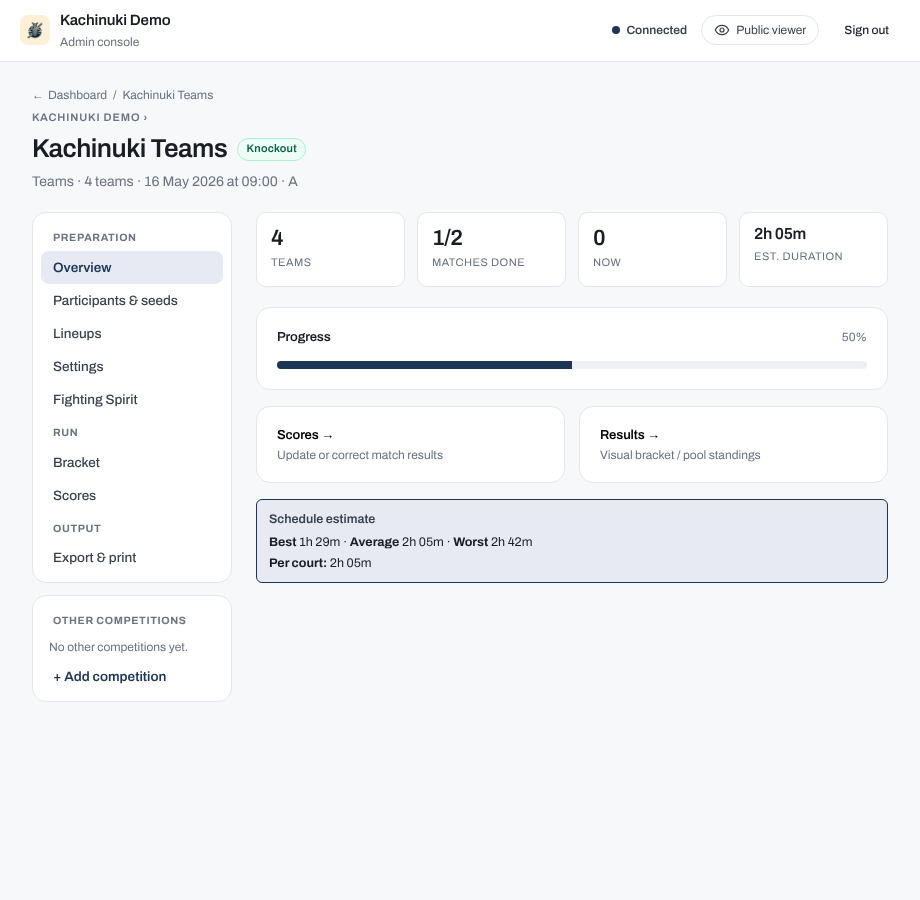
The dashboard lists all competitions for the tournament. Each card shows the competition type, participant count, bracket format, and current status. Click a card to manage that competition.
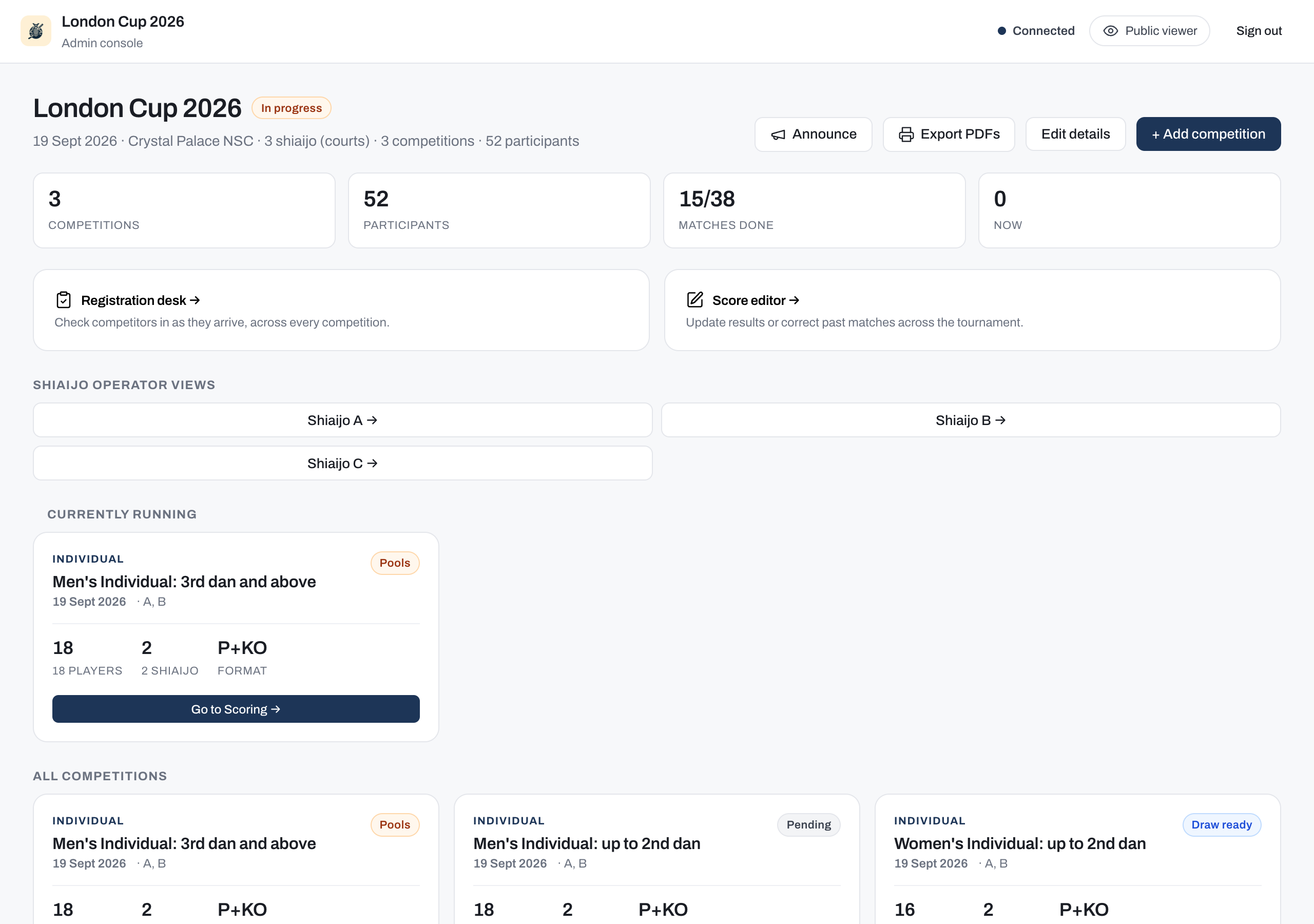
Tournament details and the public info page
Open Edit details from the dashboard to fill in the public information your attendees see:
- Venue address and a map link
- Opening and closing times
- A website link and an awards note
- Free-text info notes (rules, transportation, access details)
- Contact entries
Set the Public URL field to the externally reachable address of your app (for example, https://my-tournament.example.com). Setting this field enables QR codes on competitor tags and makes every shareable link work. The public URL also populates the public info page in the viewer and on spectator display screens.
Note
For guidance on making the app reachable over the internet, refer to Hosting.
Branding and sponsors
The same Edit details page also has branding and sponsor fields, below tournament details. All fields are optional; the default kendo theme applies when nothing is configured.
- Logo: upload an image file shown on the viewer, the lobby displays, and the admin screens.
- Accent colours: set a primary accent colour and, if you want one, a soft background tint; the viewer and display screens adopt them across the whole site. Leave the tint alone and it is derived from the primary, so one colour choice re-tints every surface, including the running-match rings and focus halos.
- Sponsors: upload full-width images that appear on the public viewer page only. Sponsor images do not appear on the TV lobby boards or scoring displays.
Announcements
Click Announce from the dashboard to broadcast a short message to every viewer. Choose a duration of 5, 10, 15, or 30 minutes; the message clears itself automatically when the time expires. It appears as an overlay on the viewer and display screens. Spectators who allow browser notifications can receive it in the background.
Registration desk
Open Registration desk from the dashboard to access the check-in surface for the welcome table. Check-in exists only for competitions with Check-in tracking turned on in their Settings, and this desk is the one place to do it: it lists every competitor across those competitions so a registration helper can mark participants present as they arrive. A competition with the setting off does not appear here, and its Ordering & seeding panel carries no check-in controls either. Refer to the Check-in workflow.
Set up a competition
A competition moves through three phases:
- Setup: configure participants, seeding, and optional check-in.
- Draw preview (
draw-ready): review the generated pools, bracket, or first Swiss round. The roster is locked during this phase. - Match play: Pools + Knockout, League, and Swiss competitions all start in
poolsstatus, which is the shared name for the phase their matches run in rather than a claim that each one has pools. Knockout-only competitions start inknockout.
Changing a competition's settings
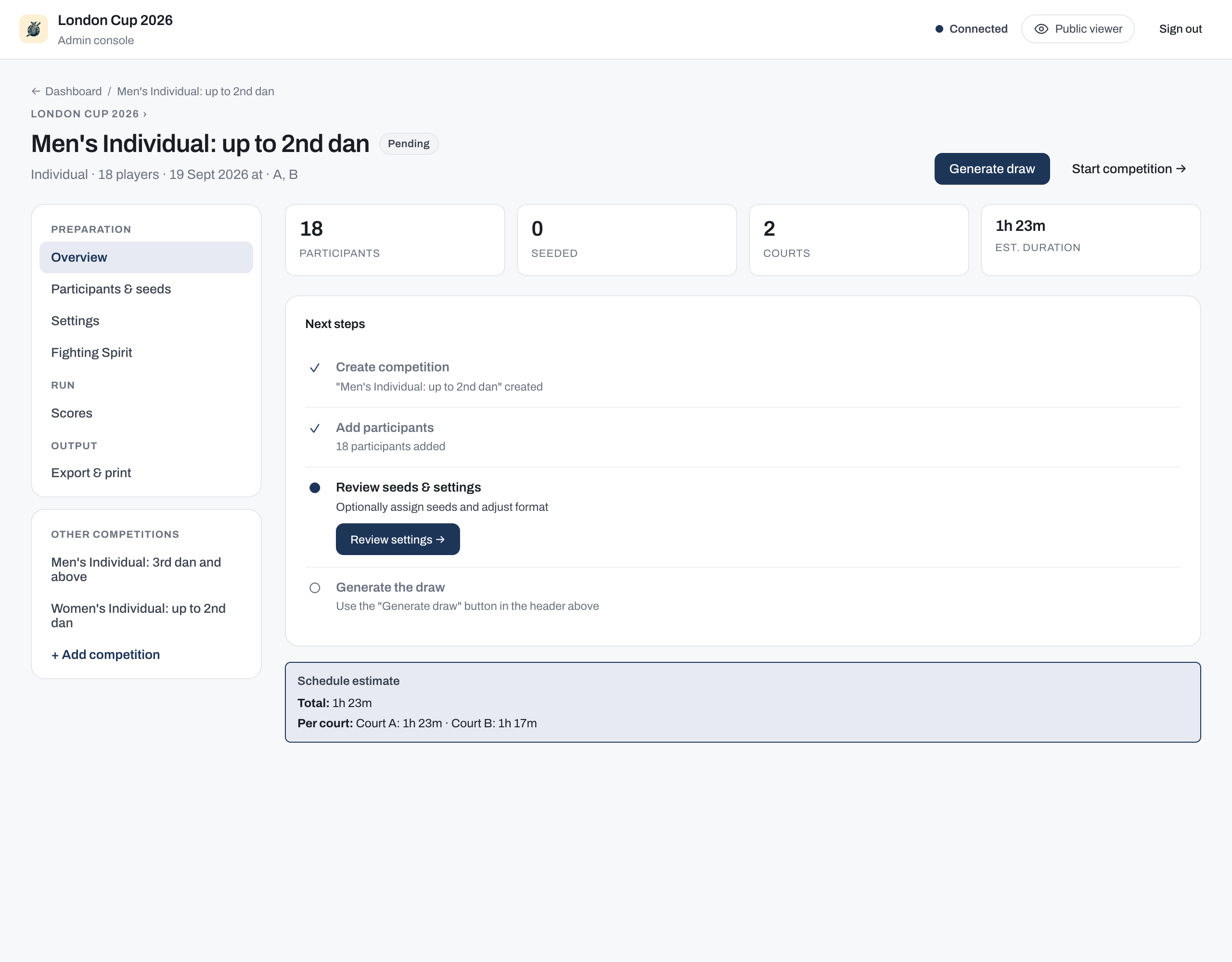
The Settings tab offers the same controls as the form you used to create the competition, so anything you chose at creation you can revisit later. That includes Competition type (individual or team), Format, and Round-robin shape.
Three rules govern when a setting stops being editable:
- Once the draw is generated, the settings that shape the output lock. Discard the draw to change them, then generate it again.
- Once the competition has started, the format and the competition type are fixed for good. Both decide how matches are generated and scored, and results already exist by then, so neither can be changed after the fact.
- Once participants are loaded, the competition type locks separately and earlier than everything else. Individual and team rosters are not interchangeable. To switch, clear the paste box in the Participant list panel and click Apply changes, as described in Adding participants.
Changing the format clears the settings that only apply to the format you left behind. Switching a Pools + Knockout competition to a League, for example, drops Players per pool, Winners per pool, and Knockout qualifiers, because a league has no pool phase to size.
Nothing is cleared while you are still deciding. When you pick a different format, a note appears under the control listing each setting the save will clear, with its current value, so you can see the cost before you commit. Switching back to the original format keeps them.
Assigning shiai-jo
The competition Settings page has an Assigned shiai-jo (courts) field listing every shiai-jo in the venue. Pick the ones this competition runs on; the number you pick is how many of its matches can run at the same time.
Assign 1, 2, 4, 8 or 16 shiai-jo. The knockout draw gives each shiai-jo its own block of the bracket and the blocks merge in pairs, so the count has to halve cleanly all the way down. Being even is not enough on its own: six blocks pair off into three, and three cannot pair off again, so 6 and 10 are refused just as 3, 5 and 7 are. When you pick a count the rule does not allow, the settings page names the counts to use instead, and it always offers 1. A single shiai-jo is always allowed. Where a competition sends two or more qualifiers up from each pool, its bracket splits into two half-blocks that act as partner shiai-jo, so the draw has the same shape as a two-shiai-jo one. Where each pool sends up a single competitor, nothing crosses between shiai-jo, and the bracket is left whole. 16 is the highest, and it is also the most shiai-jo a tournament can have, so no shiai-jo you can add is one a competition could not be given. Refer to The knockout draw for the full explanation.
This is a rule about each competition, never about your venue. A hall with three shiai-jo is completely normal, and nothing asks you to change it. What it means is that each competition there runs on 1 or 2 of the three, not that the third stands idle: run the seniors on 2 shiai-jo and the juniors on the remaining 1 at the same time, and all three are busy. A five shiai-jo hall works the same way, with one competition on 4 and another on 1, or two competitions of 2 alongside a third on 1.
A competition also cannot end up with a count the rule does not allow by inheriting one. If you create a competition without choosing its shiai-jo, it starts from the venue's list, and that inherited list is checked in exactly the same way, so on a three shiai-jo venue you are asked to pick 1 or 2 rather than being handed all three.
The rule applies only to the formats that produce a knockout bracket, which are Knockout only and Pools + Knockout. League and Swiss competitions have no bracket to merge, so they can use any number of shiai-jo the tournament has.
If you assign more shiai-jo than the competition has pools
The draw never uses more shiai-jo than the competition has pools, because a shiai-jo with no pool of its own would own an empty block of the bracket. When you assign more than that, nothing is refused and no warning is shown: the draw steps down to the largest allowed count that fits and is generated on that. A competition with seven pools assigned eight shiai-jo runs on four. The count you assign is therefore not always the count you get.
The step-down applies to the whole competition, not only to the knockout, and the blocks are handed to the assigned shiai-jo in order. Assign A to H to a seven-pool competition, and it runs entirely on A, B, C and D. The pools split 2 / 2 / 2 / 1 across those four, and every knockout match from the first round to the final is on them as well. Open the Shiaijo operator view for E, F, G or H and it reads "No matches on this court".
So assign a count the competition can fill, and give the rest to another competition running alongside it. If you want eight shiai-jo busy, the competition needs at least eight pools.
If a competition already has a count the rule does not allow
You can meet this after an upgrade, because the rule is newer than the data folder. A competition set up on 3, 5 or 6 shiai-jo before the rule existed keeps that allocation on disk, and so does one whose data folder was edited by hand.
Such a competition is not broken. It loads, and its matches and results are intact. It appears to spectators as usual, and its Settings page stays fully editable, so renaming it or changing anything else on that page still saves normally. The page carries a standing warning naming the counts to use instead.
What you cannot do is draw or start it. Generate draw and Start competition are disabled with the reason shown, and the app refuses the same action from anywhere else, until you reassign its shiai-jo to 1, 2, 4, 8 or 16.
Knockout qualifiers
For a Pools + Knockout competition with Pool size is a set to minimum, a Knockout qualifiers control appears alongside Players per pool and Winners per pool, on both the competition create form and its Settings page. It offers three options: Standard (every pool sends the same number of qualifiers), Oversized send +1, and Fit the knockout. Refer to How many qualify from each pool for what each one does, with worked examples.
Selecting either of the two non-standard options sets Winners per pool to 1 and disables the field, because both require it. Switching back to Standard makes the field editable again. Below the options, a preview line updates as you adjust pool size and roster, reading something like "34 pools -> 36 qualifiers -> 64-slot knockout (28 byes)" for whichever option is selected. On the create form the preview is a placeholder until the competition has participants; on the Settings page it previews against the real roster, and is locked once the competition reaches draw-ready, alongside the rest of the pool configuration.
Adding participants
The participant setup view has two panels.
The Participant list panel (labelled Team list for team competitions) contains a line-numbered paste box. Paste newline-separated rows in one of these formats:
- Without display name:
Name, Dojo[, Dan grade] - With display name (zekken):
Name, Zekken display name, Dojo[, Dan grade]
Click Paste clipboard to read a tab-separated selection from the clipboard and convert it automatically. Click Apply changes to save the list; the box clears once the list is saved. The box is for a new or replacement list, not a copy of the saved roster: applying while a roster already exists asks you to confirm, because the new list replaces the current one. A competitor or team matched to one already on the roster, by name and dojo, keeps their id and seed; for a team, their team members and lineups are kept too. Anyone not in the new list is removed, and, while the competition is still in setup, a removed team's members and lineups are deleted with it.
Applying the list gives every competitor a participant id. The id is not shown on the row; the Overview names any competitor still without one. Competitor numbers come later: every competition numbers its competitors when the draw is generated, pool by pool for a pooled competition or down the bracket for a knockout-only one, and nothing is shown before that. Refer to Competitor numbers. A competition saved by an earlier version of the app whose list has no ids shows a notice on its Overview naming the competitors: apply the list once to assign them. The draw does not run until every competitor has an id.
Two more notices can appear on the Overview for the same reason, once a competition has drawn. The app tries to repair these automatically, behind the scenes, the next time it reads the competition's data. Saving the participant list again lets it try once more. It matches a pool member to a participant by name and dojo together, or by name alone when the row records no dojo and only one competitor has that name. It matches a match side by name alone, because a match row only records a name. A notice remains only for a row it could not match this way:
- A notice naming pool members with no id. The app could not match that member to a participant on the current roster (for example, the roster changed after the draw was made). That competitor shows no competitor number. Regenerate the draw, while it is still draw-ready, to fix it.
- A notice naming pool matches with no id on a side or a winner. The app could not match that side automatically, most often because two competitors share the same name. That match is not counted in the standings. Re-entering the result assigns a missing winner id. Regenerating the draw, while it is still draw-ready, restores a missing side id.
Both notices are advisory, not blocking: the competition keeps running, and nothing you have already recorded is lost.
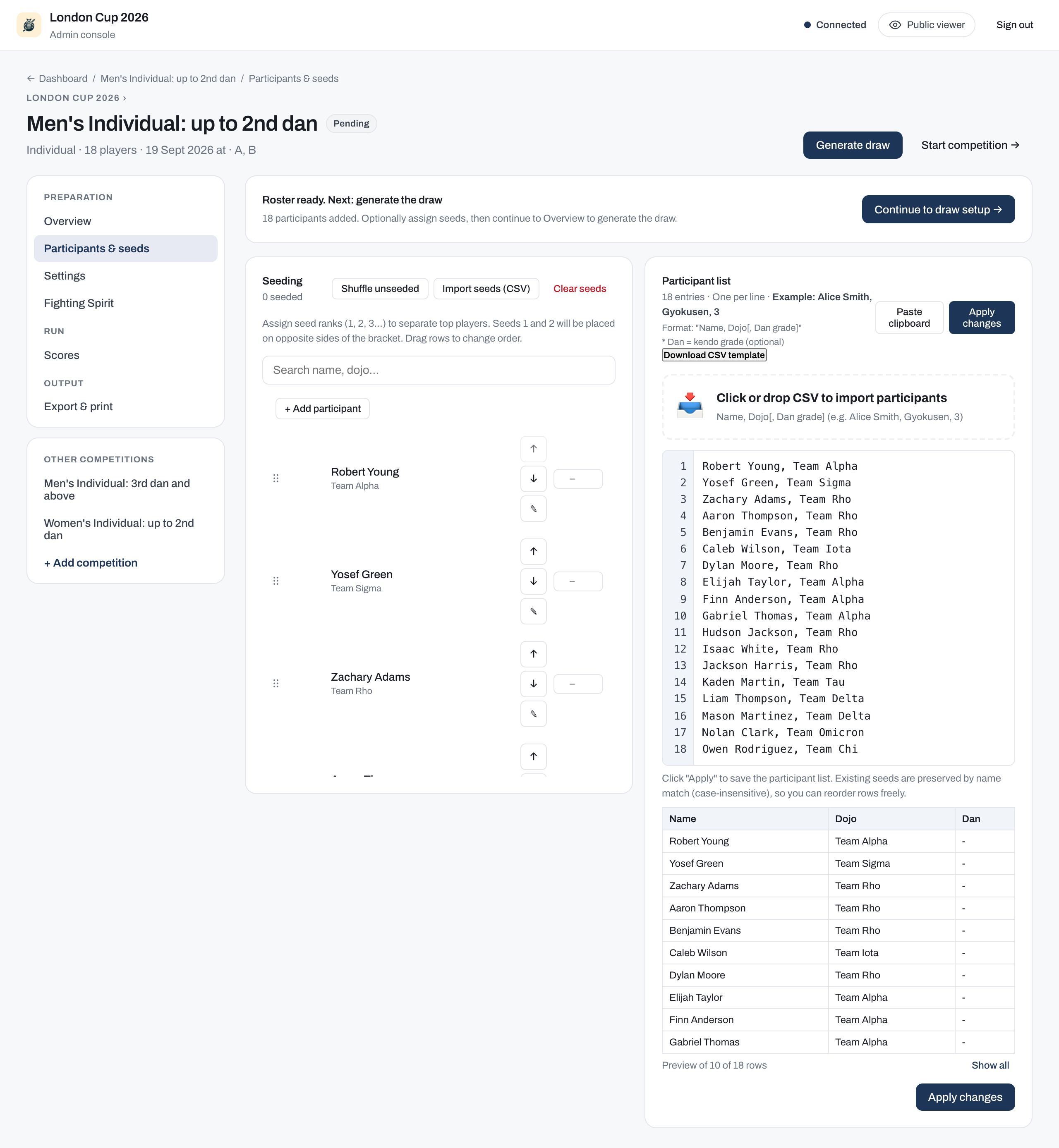
The Ordering & seeding panel shows the working roster, one competitor per row: the competitor number once a draw exists, the name and the dojo. Before the draw the rows are in roster order, which you can change; once the draw has numbered the competitors the rows are listed in number order, with anyone the draw left out at the end. From here you can:
- Drag rows to assign seeds, or type a rank number directly.
- Click Shuffle unseeded to randomise unranked positions.
- Click Import seeds (CSV) to load a seed file, or Clear seeds to remove all ranks.
The order you rank the seeds in is used, not just the set of seeded competitors. Seeds 1 and 3 land in one half of the knockout draw, and seeds 2 and 4 land in the other, each in its own quarter. A seeded pool's winner is first in line for any bye in its shiai-jo's block. Fewer than four seeds, including none at all, is a normal configuration. Refer to Seeding in the knockout draw.
Ranks must run from 1 with none missing. You can enter them in any order, and each is saved as you type it, so a partly-entered seeding is expected. While it has a hole in it, the panel names the ranks still to set, and the Generate draw and Start competition buttons are disabled. Fill in the missing ranks, or click Clear seeds to start again.
Editing a single competitor
Click the pencil icon on any row to open the edit modal for that competitor. You can change the name, dojo, dan grade, and display name during setup and while the draw is pending; a change made after the draw is generated is carried into the draw (pools and bracket) for you. Once the competition has started the pencil is no longer shown.
Check-in workflow
Enable Check-in tracking in Settings for the competition. Competitors are checked in at the Registration desk, which works across every competition; the Ordering & seeding panel carries no check-in controls.
The check-in rule is opt-in: when you click Generate draw, if at least one participant is checked in, only checked-in participants join the draw and unchecked participants are excluded (their seeds are dropped). If nobody is checked in, everyone is included.
Draw preview
Click Generate draw to produce the bracket. The competition enters draw-ready status and shows an interactive preview:
- Pools + Knockout competitions show pool assignments.
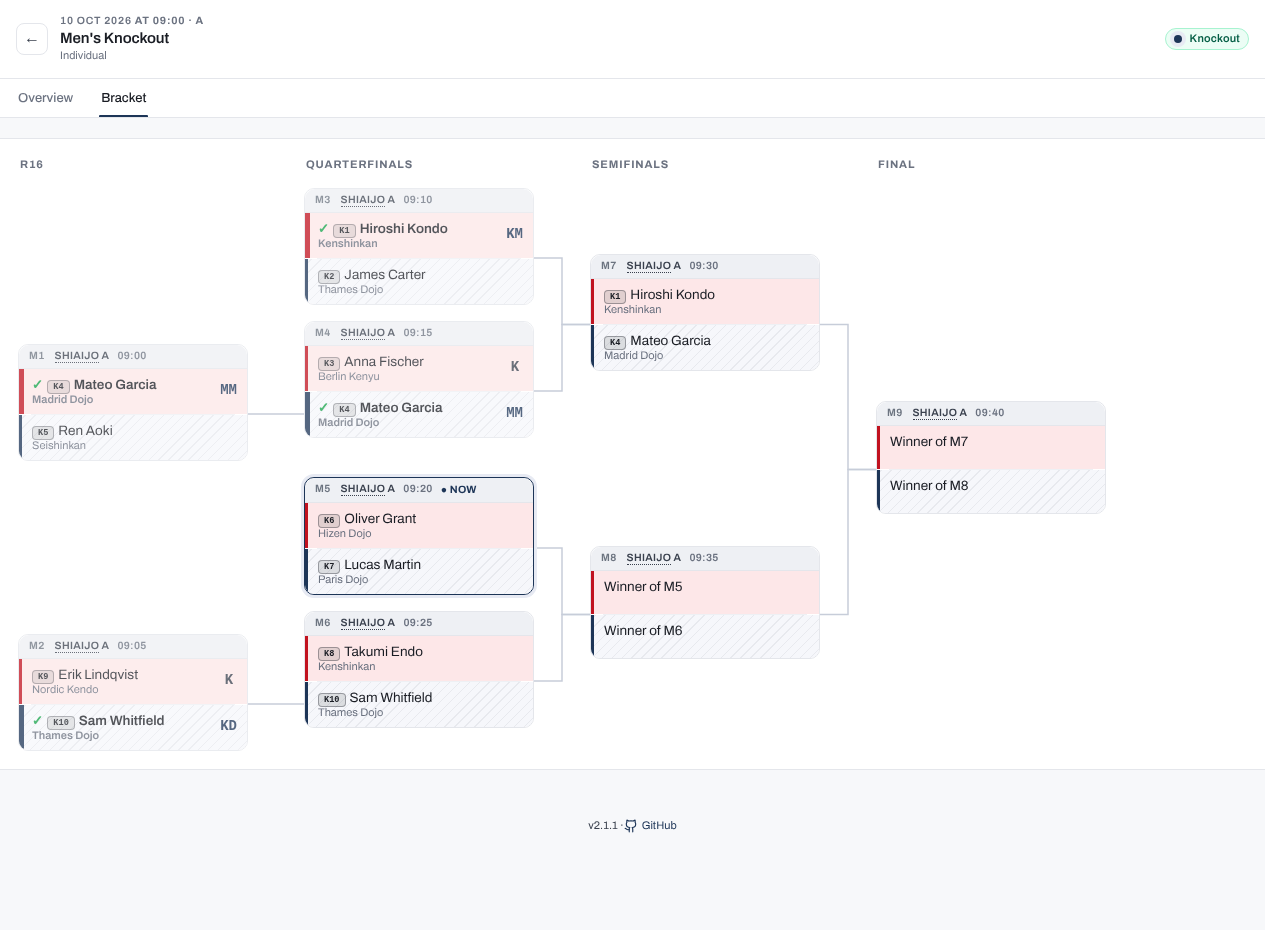
- Knockout competitions show the bracket tree.
- Swiss competitions show round 1.
If a seeding rule could not be honoured, a banner above the preview reads Seeding: the draw could not honour every rule and lists what gave way. The draw still stands; refer to Seeding for which rule gives way first.
You can still toggle individual check-in status during draw-ready, but roster edits (add, remove, reorder) are locked.
When the preview looks correct, click Start competition to move to match play. To make roster changes instead, click Discard draw to delete the draft and return to setup.
A draw-ready competition is already listed on the shiai-jo operator views, since its matches exist. Scoring one of those matches starts the competition on the spot, exactly as Start competition would, so a court that begins play never has to wait for the desk.
Pools and bracket
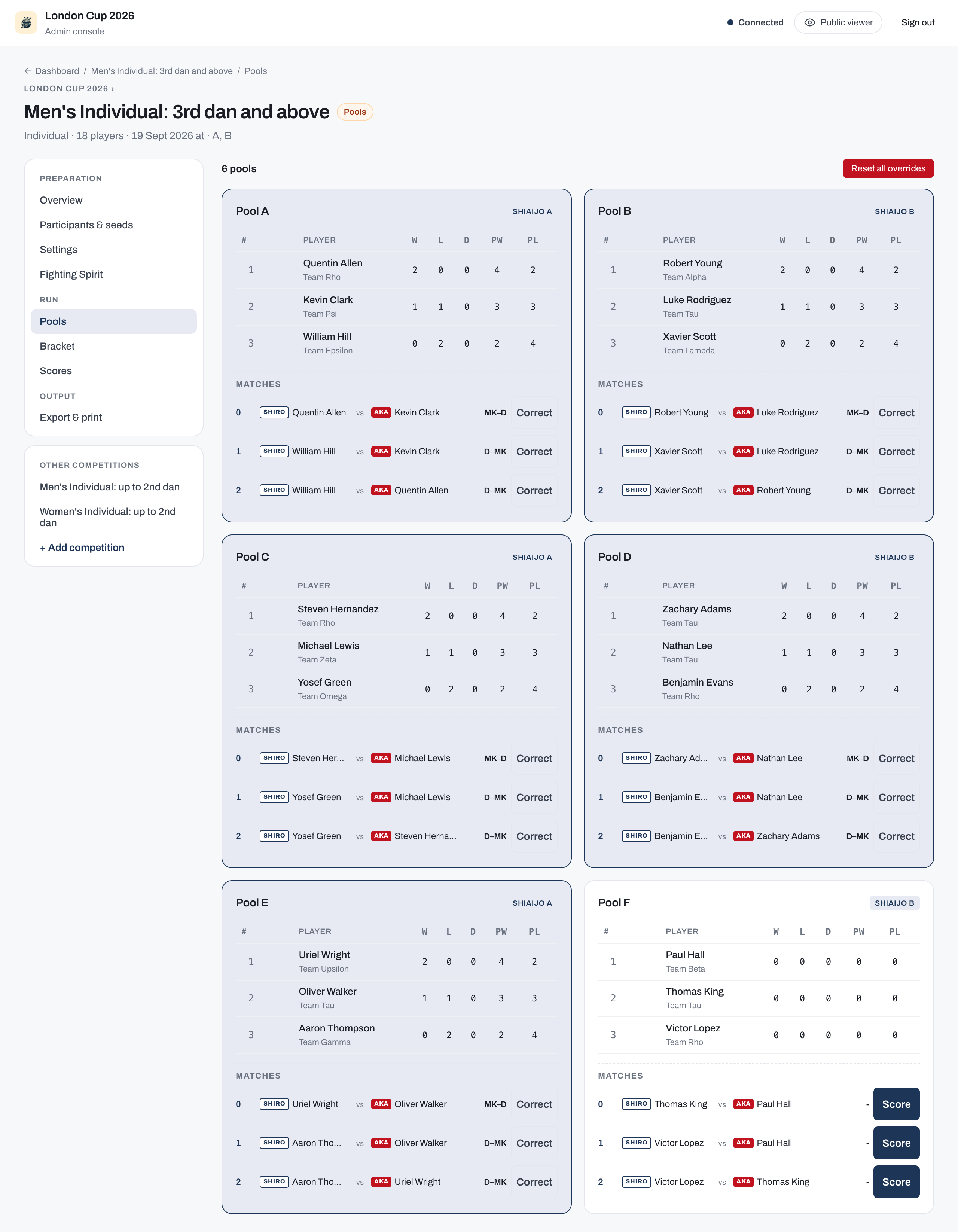
The Pools tab shows standings for every pool. Ranks are computed automatically from match results. Operators do not edit them by hand, with one exception: chusen (drawing lots), the last-resort tie-break for a consequential team-pool tie that a daihyosen cannot settle. Refer to Recording decisions. When a daihyosen settles a tie that determines pool advancement, the winning side carries a DH badge in the standings.
Pool finishers move into the knockout bracket on their own: as soon as a pool's last match is scored, its qualifiers are seeded into their bracket slots. Those knockout matches can be scored without waiting for the other pools. Once the last pool is seeded, the competition moves to the knockout phase. The bracket updates in real time as results come in. A pool result corrected later still moves its qualifiers in the bracket; refer to Correct a pool result after the knockout has started.
For the four competition formats and the Swiss round-by-round flow, refer to Formats.
For team lineups and team scoring rules, refer to Team tournaments.
For how to enter scores and navigate between matches, refer to Scoring a match.
For kiken, fusenpai, daihyosen, and other special decisions, refer to Recording decisions.
For naginata and Engi-kyogi divisions, refer to Naginata.
Results and awards
The public viewer shows a competition's podium when it finishes, and a provisional ranking while it is still in progress.
The Award two joint 3rd places setting, on the competition's Settings tab, controls whether a competition awards two joint 3rd places or decides a single one with a bronze match. It is on by default (the standard kendo convention) and applies to knockout, pools-then-knockout, and league competitions. It is not shown for Swiss, which has no bracket and no bronze match. Naginata competitions default the setting off (a single 3rd, decided by a bronze match). You can turn it back on for a naginata competition too, and you can turn it off for a kendo competition that needs a single 3rd, for example a selection event with one bronze medal. Refer to Naginata for the bronze match itself.
- Knockout (default: joint 3rds on): 1st place, 2nd place, and two equal 3rd places. There is no bronze match; both semi-final losers share third.
- Knockout with joint 3rds off: a single 3rd place is decided by a bronze match.
- Pools + Knockout (still in its pool phase): the viewer shows a provisional cross-pool ranking until the knockout decides the final places.
Operators see an all-competition winners view from the dashboard. You can also record optional fighting-spirit (敢闘賞) awards as free text; these appear on the viewer for all spectators. Saving awards requires the destructive-ops password in self-run mode; refer to Operating modes.
League competitions derive the podium from final standings. In an individual league, any tie within the top three places triggers a short ippon-shobu tie-breaker automatically, so the competition never closes with an unearned tie. Engi kata competitions never hold supplementary bouts; they rank by wins, then accumulated flags (refer to Naginata). The one exception is 3rd place: with Award two joint 3rd places enabled, competitors tied entirely for third share the position instead, with no decider. In a team league, the operator chooses whether to run a tie-breaker or accept a tie at any position; refer to Team standings and tie-breaks.
Set the Award two joint 3rd places option during setup, before you generate the draw. Once the draw exists, the option is locked; discard the draw to change it.
Export and print
Excel
Two Excel downloads are available from the competition page:
- Download results (.xlsx): a workbook with played scores, pool standings, winners, and decisions filled in. Covers pools, league, and knockout formats. Swiss competitions have no static bracket; follow the current standings instead.
- Download blank template (.xlsx): an empty bracket workbook with linked formulas for hand scoring at events without a network connection.
PDF exports (competitor tags, name sheets, and bracket trees) are available to admins only. Rendering requires LibreOffice:
- Use the
ghcr.io/gitrgoliveira/bracket-creator-mobile-pdf:latestcontainer image, which includes LibreOffice. - Or install LibreOffice on the host and ensure
sofficeis on the system path.
The lean container image omits LibreOffice and returns a clear message when a PDF is requested.
When the Public URL is set and competitors have assigned numbers, each printed tag includes a QR code that opens the viewer and adds that competitor to the scanner's watchlist. Refer to Hosting for guidance on setting the public URL.
Data format
Tournament state is stored as plain files inside the data folder you specified with --folder. You can hand-edit these files between rounds when a correction is needed:
tournament.md: YAML front-matter with the tournament name, date, venue, court count, and the admin password and destructive-ops password.competitions/<id>/config.md: YAML front-matter with competition kind, format, pool settings, and courts.competitions/<id>/participants.csv: one participant per line with name, optional display name (zekken), dojo, and optional dan grade.
Refer to Data model for every file in the folder and what each holds.
Warning
Edit data files only between rounds, not while the server is actively processing match results. Concurrent writes can produce inconsistent state.
Tournament schedule
Open Tournament schedule from the dashboard to configure timing for each competition. Set start times and the time per match, typed as minutes and seconds (for example 2:30), then click Auto-schedule competition to distribute all pool matches across the assigned shiai-jo automatically. The view shows an estimated end time per court based on match duration and the number of assigned matches.
Each competition can also set its own pool and knockout match durations on its Settings page. Type them as minutes and seconds, for example 2:30. A whole number on its own is read as minutes, so 3 means three minutes. Leave a duration blank to use the default of 3:00. Clearing a duration you had set resets it to that default. Durations must fall between 1:00 and 60:00; a value outside that range is refused rather than quietly adjusted, because match duration drives the whole schedule.
A competition created before durations were measured in seconds is converted the first time it is opened, and its saved value carries over unchanged. Only a value above 60:00 is capped, which no realistic match setting reaches.
Changing a match duration never invalidates a generated draw. Pools, brackets and seedings are unaffected, so you can retime a competition after generating its draw without regenerating anything.
For a kachinuki (winner stays on) competition the number of bouts is not fixed, so the estimate is a range rather than a single figure. The competition Overview shows Best, Average, and Worst: best is a clean sweep where one fighter wins every bout, worst is the longest run where each bout retires one fighter, and average sits between them. Use the worst figure for planning the day and the average for a realistic finish time.