Your first tournament
This page walks you through the fastest path from a running server to real-time results on a screen. Each step links to the full reference for that topic.
1. Install and start the server
Install the binary by following Installation, then start the tournament app:
Open http://localhost:8080 in a browser. When the data folder is empty, the app prompts you to create a tournament. Fill in the name, date, venue, number of shiai-jo, and the admin password. Before you set the password, read Operating modes to choose between officiated and self-run.
2. Create a competition
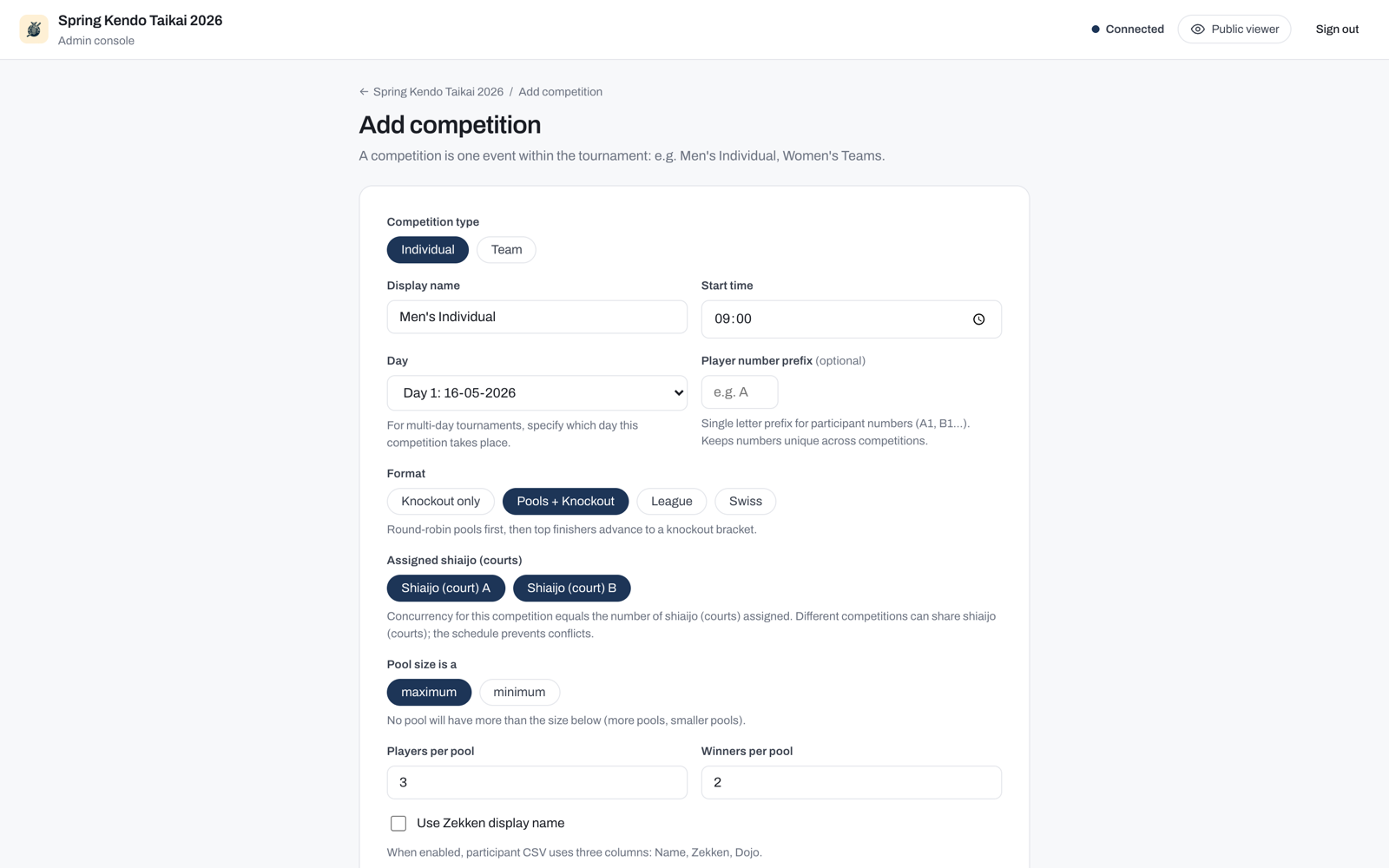
From the dashboard, click + Add competition. Choose Individual or Team, then pick a format: Knockout only, Pools + Knockout, League, or Swiss. Refer to Formats for a description of each format and when to use it.
The number of shiai-jo you entered in Install and start the server is your venue's total. It can be anything from 1 to 16. Each competition is then assigned some of them. A competition that ends in a knockout must be assigned 1, 2, 4, 8 or 16, because its bracket splits into one block per shiai-jo, and those blocks merge in pairs. So a hall with three shiai-jo runs each competition on 1 or 2, and can run two competitions at once to use all three. Refer to Assigning shiai-jo.
3. Add competitors
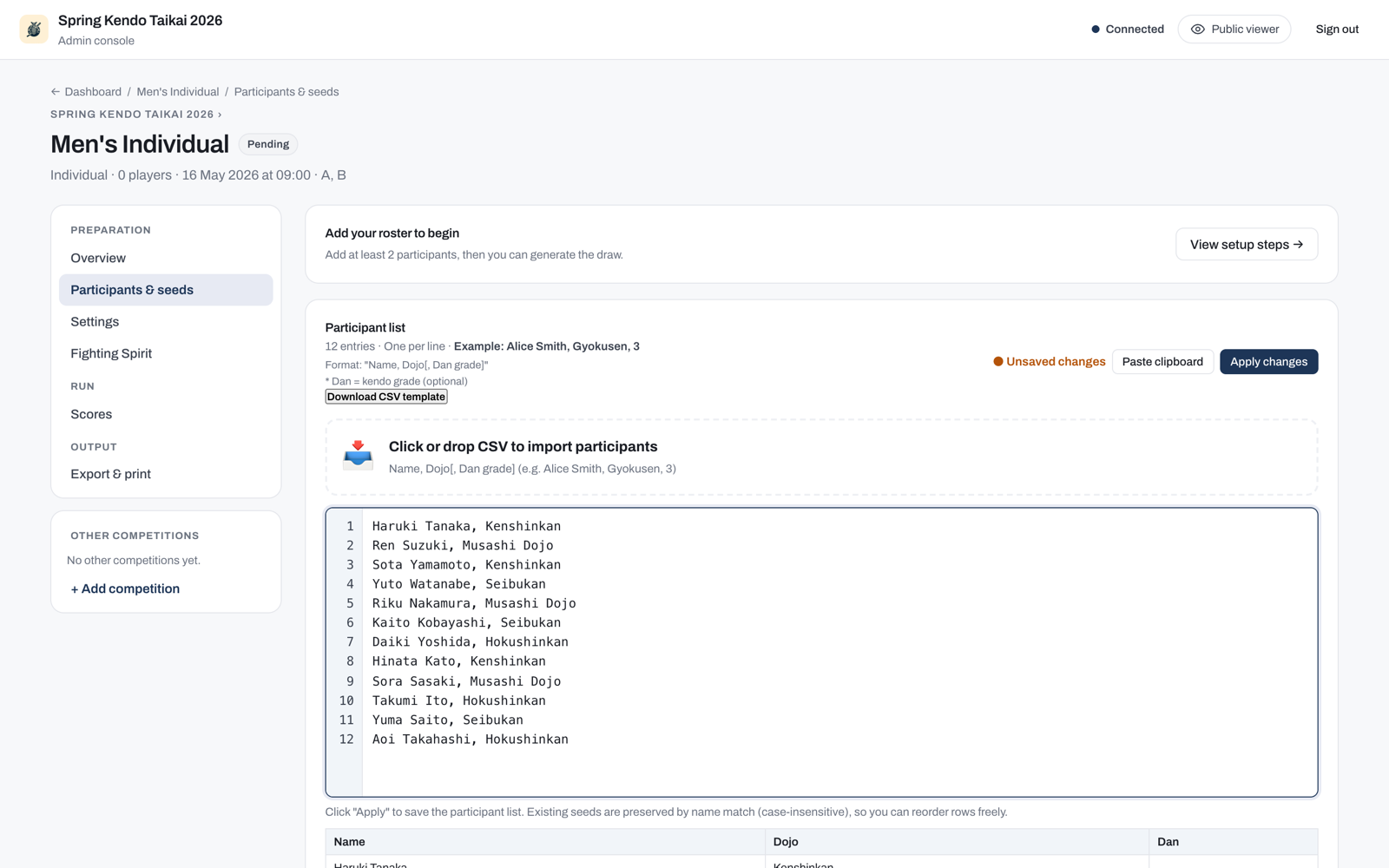
Open the competition setup and paste a newline-separated roster into the participant panel, then click Apply changes. The Run a tournament guide covers import options and roster management in full.
4. Generate the draw and start
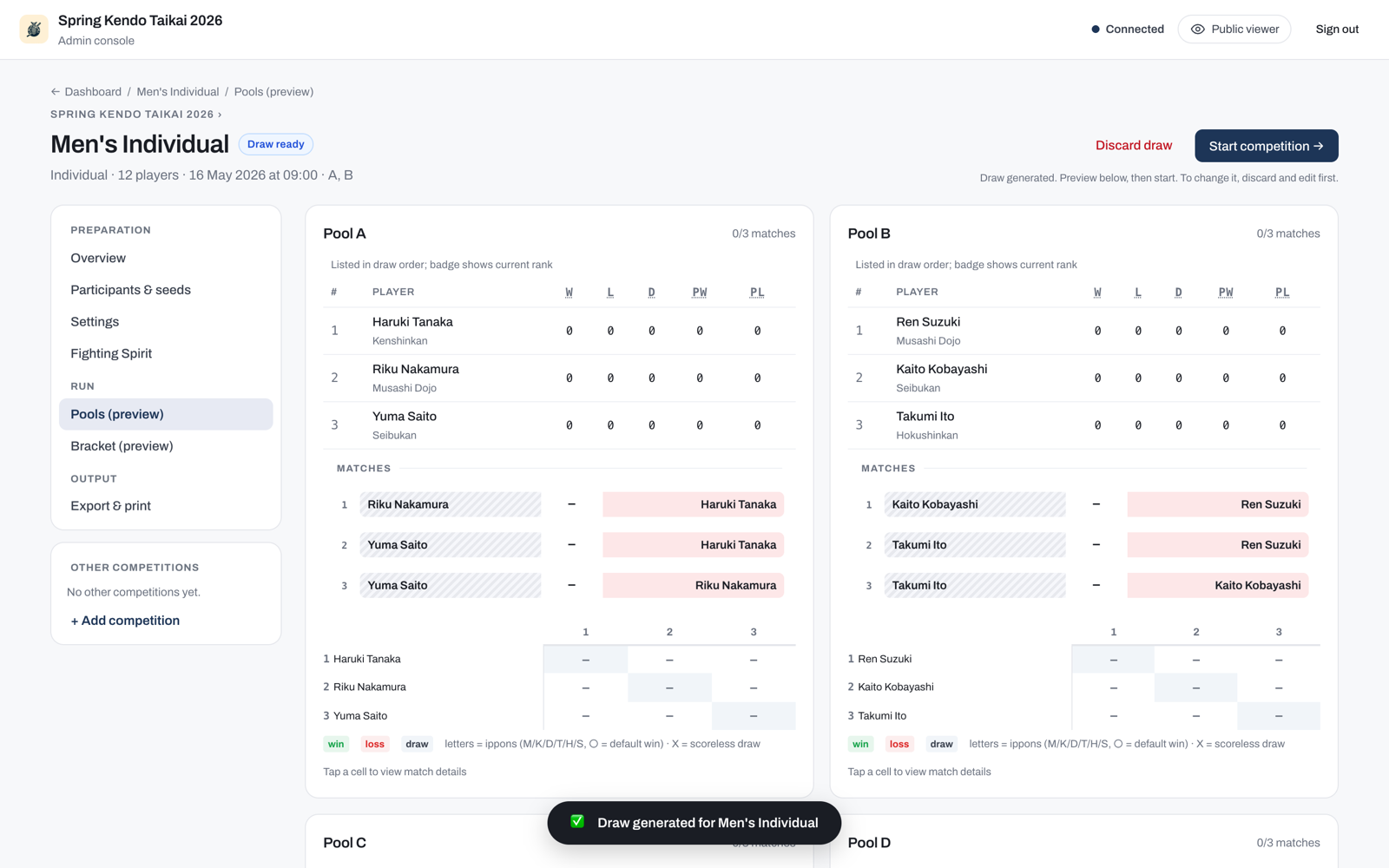
Click Generate draw to build the pools and bracket. Review the preview, then click Start competition. Matches now appear to scorers and to the public viewer page.
5. Enter a score
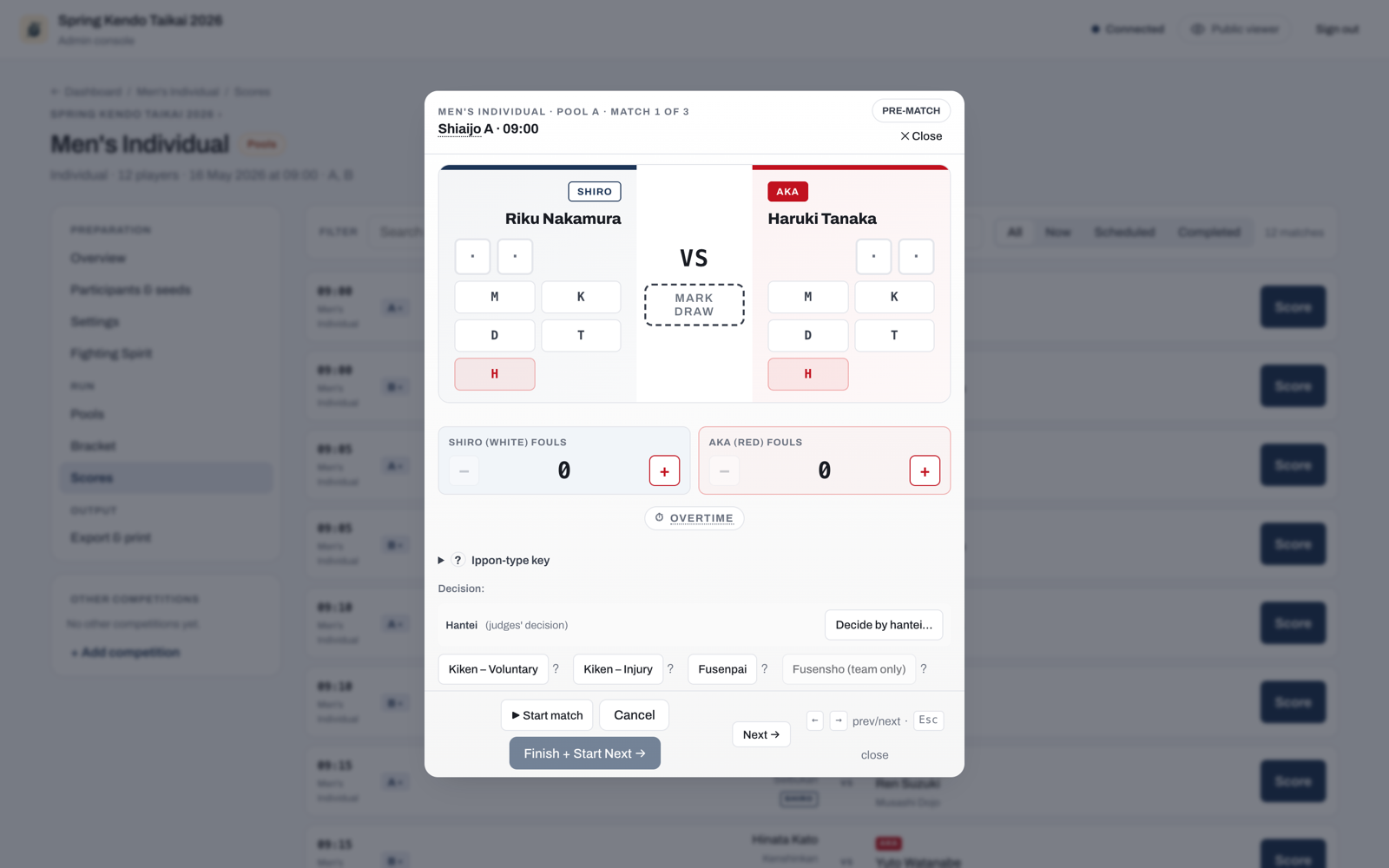
Go to the Scores tab, open a match, and record the result. Refer to Scoring a match for the full scoring workflow, including points, decisions, and team bouts.
Tip
Open http://localhost:8080 on a second screen (a scoreboard TV or a phone) with no password. Standings and brackets update in real time as a scorer records each result. Refer to Following a tournament for the full viewer experience.
Next steps
For the complete organiser workflow, including pools, seeding, and competition settings, refer to Run a tournament. To generate print-ready brackets without the tournament app, refer to Legacy Web UI and the create-pools command.